Field Properties
A field's properties are defined in the Field Properties window.
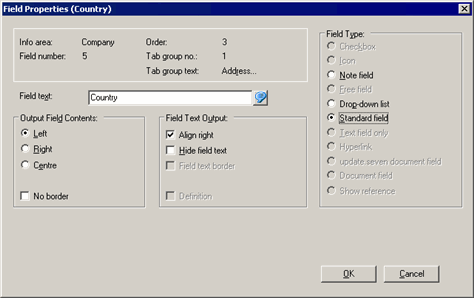
The Field Properties window fields are defined below:
- Info area: Name of the info area containing this field.
- Field number: Field number
- Order: Tab order of the field in the mask.
- Tab group no.: The number of the tab the field has been assigned to, if applicable.
- Tab group text: Name of the tab
-
Field text: Name of the field. Click on
 (Multi-language
Input) to edit the name of the field in the available languages.Note: You can rename fields globally in the data model, see Renaming Fields in the CRM.core Administrator Guide.
(Multi-language
Input) to edit the name of the field in the available languages.Note: You can rename fields globally in the data model, see Renaming Fields in the CRM.core Administrator Guide.
Output Field Contents
These settings define the formatting of the field contents.
- Left/Right/Center: Select the alignment of the field contents.
-
No border: Enable this option to display the field without a
border.Note: This setting takes precedence over the No field border option in the Tab Group Properties window.
Field Text Output
These settings define the formatting of the field name.
- Align right: Align field text to the right (default: left-aligned).
- Hide field text: Enable this option to prevent the name from being displayed.
- Field text border: This option is only available for fields in lists.
- Definition: Enable this check box to add a multi-language description field, see Text Fields for Descriptions.
Field Type
These settings determine the field type:
- Checkbox: The field is displayed as a check box.
- Icon: The field contents are displayed as an icon. Choose this option for fixed catalogs that use icons.
-
Note field: A field for notes that spans several lines. The
Output Field Contents pane is grayed out when you select
this option.Note: This option is not available for document, link, e-mail and pure text fields.
- Free Field: A field whose contents are calculated and displayed using internal formulas. Do not change these fields' type.
- Drop-down list: The field is displayed as a drop-down list. This option is only available for catalog fields.
- Standard field: Aurea CRM standard field
- Text field only: This option is active if Text field is selected in the Field Selection window, see Text Fields for Descriptions.
- Hyperlink: The field is displayed as a hyperlink. These fields can be used for web pages, e-mail addresses, links to Aurea CRM records and paths to documents, applications etc.
-
update.CRM
document field: Depending on the interface settings in the
current desktop format (see Masks Tab), clicking on
 (Load) icon either loads an external document or is used to
select a document from within Aurea CRM's document management system. This option is
active for fields defined as document fields in the data model, see Properties in the CRM.core
Administrator Guide.
(Load) icon either loads an external document or is used to
select a document from within Aurea CRM's document management system. This option is
active for fields defined as document fields in the data model, see Properties in the CRM.core
Administrator Guide. -
Document field: Users can click on (Load) to
enter an external document. The document is not stored in Aurea CRM's document
management system.Note: Select a field with at least 256 characters to display the path.
- Show reference: The record's reference is displayed in the field. References must be enabled using the Show links option in the interface settings, see Misc. Tab. This option is only available for fields in summary index cards.
Text Fields for Descriptions
To add an information field to a mask (or mask type list):
- Click on
 (Field).
The Field Selection window is displayed:
- Select Text field in the Field Selection window.
- Click on OK.
- Click on the desired position in the mask.
The Field Properties window opens.
- Enable the Definition check box in the Field Properties window.
- Enter the desired text under Field text. Your text can include carriage returns.
- Click on OK.
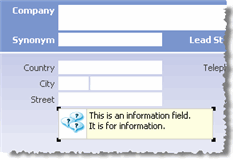
- Resize the field using the mouse. If the text is longer than the space available in the field, a scroll bar is automatically displayed. A ToolTip containing the full text is displayed if the mouse cursor is positioned over the field.
- Save the mask.
Note: You can determine how long (in milliseconds) ToolTips are displayed using the
ToolTips Duration configuration entry, see Mask in the CRM.core
Administrator Guide.