You can use triggers to create and send e-mails in the background.
Before you can use such a trigger, you need to specify your e-mail client in the Configuration info area, see General Settings (E-Mail Client option).
In this example, any changes to the Processed by field in the Ticket info area should cause an e-mail containing all necessary information to be sent automatically to the new owner of the ticket.
- Define the following trigger:
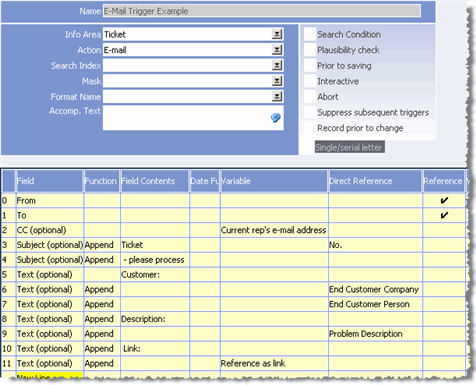
The following parameters are available:
-
From: The sender, defined here using a reference:

-
To: The recipient. Separate recipients using a semicolon. A
reference is used here:

- CC (optional): Carbon copy. Separate recipients using a semicolon.
- BCC (optional): Blind carbon copy. Separate recipients using a semicolon.
- Subject (optional): The e-mail's subject. Use the Append function to combine multiple entries to form the subject line. Use the Reference as link option in the Variable column to include a link to the trigger record in the subject.
- Text (optional): The e-mail's body text. Use the Append function to combine multiple entries to form the body text. Use "CRLF" to insert line breaks. You can also enter the text in HTML format.
- Use the Reference as link option in the
Variable column to include a link to the trigger record
in the e-mail.
Select the corresponding format (TXT or HTML) on the E-Mail tab. If you do not select an option, the setting is read from the SMTP connection settings, see SMTP Connection Settings.
Use the Reference as Link option in the Variable column to add a link to the source record to the e-mail.
Instead of using the Text parameter, you can also define a global transfer format for the e-mail's body text (Format Name field), see Defining Transfer Formats and Global Formats in the Aurea CRM win User Manual. The transfer format must include a transfer fields format, even if the e-mail body text does not reference any fields.
The settings entered in the transfer format for the subject and sender are overwritten if suitable parameters are defined in the trigger.
-
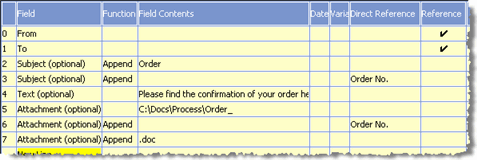
Attachment(
optional): A document in Aurea CRM's document management
system or the path to a local file. You can use the Append
function to generate the path and file name. In this example, a document is taken
from an order record and included as an attachment.
-
Module: By default, E-Mail triggers are only executed in
the main module (mmba.exe). Use the
Module option to specify the modules where the E-Mail
trigger should be executed.
Double-click in the Field Contents field to get the module list:
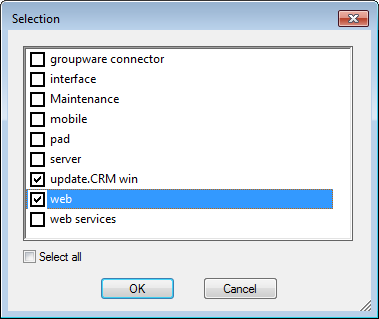
Enable the check boxes for the desired modules.
-
From: The sender, defined here using a reference:
- Enable the Save e-mail in 'Sent Items' option on the E-Mail tab if you want to save e-mails sent via triggers to the current rep's Sent Items folder in their e-mail client.
- Save the trigger.
- Switch to the Rights info area.
- Click in the Trigger cell for the Ticket info area.
- Define the following database event:

A change to the Processed by field initiates the trigger.
- Save the access rights and assign them (to a station).
If an e-mail trigger is initiated from either the Company or Person in Company info areas, an activity record is created containing the contents of the e-mail. If the e-mail is sent in HTML format, a customer document containing the body text is also created.
E-mail triggers cannot be executed as part of automatic selections, >> Automatic Selections in the Aurea CRM win User Manual.
Aurea CRM web only supports triggers that send e-mails via SMTP. A valid configuration entry (General Settings -> Connection Settings for SMTP) is required or the smtp.cfg file must be copied to the web\system\sys directory to be able to execute e-mail triggers in Aurea CRM web, >> SMTP Connection Settings and Aurea CRM web Technical & Installation Guide.