Scheduling a Backup and Restore operation
Learn to schedule a Backup and Restore operation.
To schedule a backup or restore operation perform the following:
- Click on the Cloud Backup option on the start page of the designer. The Cloud Backup page opens.
- Click on the Scheduler tab. The Scheduler tab opens.
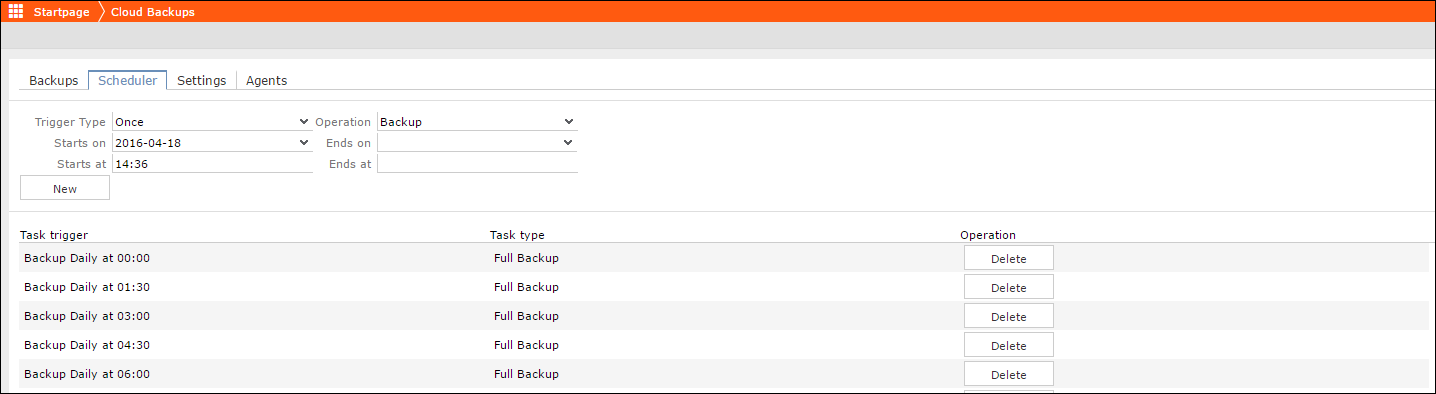
- Select the operation type from the Operation drop-down list. Available operations are Backup and Restore.
- Select the operation schedule using the Trigger Type drop-down list.
To set up a once only backup operation, perform the following steps:
- Select Once from the Trigger Type field.
- Select the scheduled date from the Starts on date field.
- Enter the time to trigger the operation in the Starts at
text field. The format should be in
<hours>:<minutes>form. For example, in the image above to trigger the operation at 4.36 PM, enter the value 14:26. - Click New, to add a new entry in the list of scheduled
items. The Task Trigger column should have the entry in the form
<operation type> Once at <date> <time>. For above example, it has the entry “Backup Once at 2016-04-18 16:36”.
To schedule a daily backup operation, perform the following steps:
- Select Daily from the Trigger Type field.
- Select the scheduled start date from the Starts on date field.
- Select the scheduled end date from the Ends on date field.
- Enter the time to trigger the daily operation in the Starts
at text field. The format should be in
<hours>:<minutes>form. For example, in the image above to trigger the operation daily at 4.36 PM, enter the value 14:26. - Click New, to add a new entry in the list of scheduled
items.
The Task Trigger column should have the entry in the form
<operation type>Daily at<time> until <End Date>. For example, “Backup Daily at 16:36 until 2016-04-23 00:00”.
To schedule a weekly backup operation, perform the following steps:
- Select Weekly from the Trigger Type field.
- Select the scheduled start date from the Starts on date field.
- Select the scheduled end date from the Ends on date field.
- Enter the time to trigger the daily operation in the Starts
at text field. The format should be in
<hours>:<minutes>form. For example, in the image above to trigger the operation daily at 4.36 PM, enter the value 14:26. - From the Week Days field, select the days of the week you want to trigger the operation.
- Click New, to add a new entry in the list of scheduled
items.
The Task Trigger column should have the entry in the form
<operation type>weekly at<time> on days <weekday1>, <weekday2> etc until <End Date> 00:00. For example, “Backup weekly at 16:36 on days Monday, Friday until 2016-04-23 00:00”.
To schedule a monthly backup operation, perform the following steps:
- Select Monthly from the Trigger Type field.
- Select the scheduled start date from the Starts on date field.
- Select the scheduled end date from the Ends on date field.
- Enter the time to trigger the daily operation in the Starts
at text field. The format should be in
<hours>:<minutes>form. For example, in the image above to trigger the operation daily at 4.36 PM, enter the value 14:26. - From the Months field, select the months of the year you want to trigger the operation.
- From the Month days field select the days of each selected month you want to trigger the operation.
- Click New, to add a new entry in the list of scheduled
items.
The Task Trigger column should have the entry in the form
<operation type> Monthly at<time> on a day <date1>, <date2>, <date3> etc of <month1>, <month2>, <month3> etc until <end date> 00:00. For example, “Backup Monthly at 16:37 on a day 5, 12, 19, 26, 30 of May, June, July, August until 2016-08-31 00:00”.