Assigning Documents to Records
Learn how to assign documents to records.
You can assign local documents to records:
- In document info areas, see Assigning Documents from your File System to Records.
- Using drag & drop, see Assigning Documents with the Mouse.
To assign a document in the Aurea.CRM database to a record:
- Add a link from the document to the record, see Assigning an Aurea.CRM Document to a Record.
- Add a link to the document from the record itself, see Linking a Record to an Aurea.CRM Document.
Assigning Documents from your File System to Records
To assign a document in your file system to a record:
- Assign the record using one of these methods:
- Switch to the Document info area and click
 (New).
- Switch to the Customer Document info area from the
desired company/person and click on
(New)
- Switch to the record you wish to link with the document. Click on
 (Document overview) and click on
(New). Select Document from local file
system.
(Document overview) and click on
(New). Select Document from local file
system.
- Switch to the Document info area and click
- Choose whether to add an OLE document or a
Standard document, see Assigning OLE Documents to Records
and Assigning Standard Documents to Records. Note: Your administrator can determine that documents are always be added as OLE documents or standard documents, see Desktop / Global Settings / Misc. Tab in the Aurea.CRM win Administrator Guide.
- You can enter a Title and Keyword to make it easier to find the document again.
- Enable the Private check box if you wish to prevent other users from accessing the document.
- The Format and Application are entered automatically.
- Save the record.
You can still edit the record after saving. Do not however subsequently define a standard document as an OLE document (OLE check box), as the document is longer found.
Assigning OLE Documents to Records
To assign an OLE document to a record:
- Select OLE document (object). The Insert Object dialog is opened.
- Select the Create from File.
- Enter the path and file name or click on Browse to search for the file. The file is opened in the associated application.
- Edit the document as necessary.
- Close the application.
- Click on Yes when asked if you wish to save the document in the database.
Assigning Standard Documents to Records
Standard documents cannot be created from within Aurea.CRM win; only existing documents can be added to the database. No save prompt is displayed when closing Aurea.CRM win if a document is open.
To add a standard document:
- Select Standard document.
The Windows Open dialog is displayed.
Note: The default folder is based on your settings, see Document Directories. - Select the desired document.
Assigning Documents with the Mouse
Your administrator can determine that you can assign document(s) to a record using drag & drop, see Configuration Info Area (Documents category, Allow multiple file uploads / drag&drop option) in the CRM.core Administrator Guide.
To assign one or more documents from your local file system to a record:
- Switch to the desired record in the mask view (in view mode).
- Drag the document(s) to the mask using the mouse.
If the mask contains several info areas that documents can be assigned to, select the target info area from the list.
The document is added to Aurea.CRM as a standard document, and a corresponding record is added to both the Document and Document Link info areas.
Your administrator can determine that a value is automatically entered in the Document Class field based on the document type, see Configuration Info Area (Documents category, Document class used for drag&drop option) in the CRM.core Administrator Guide.
Assigning an Aurea.CRM Document to a Record
To associate a document stored in Aurea.CRM with a record:
- Switch to the desired document in the Document info area.
- Select Document link from the context menu. The Document link info area is opened.
- Click the New button to add a new link.
The Select Info Areas dialog box is displayed.
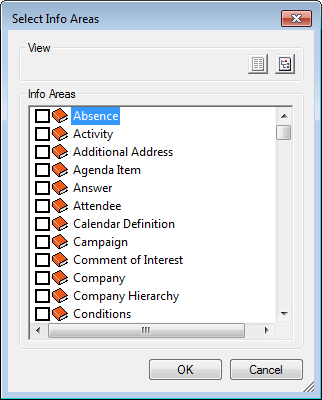
- Select the info area and click OK. The search mask is displayed for the selected info area.
- Search for the record you wish to associate the document with, and confirm with OK. A link record is added. The Link to Info Area field contains the abbreviation of the target info area; the Link field contains a hyperlink to the associated record.
- Save.
You can select Document from the context menu in some info areas to open the associated document.
To switch to the associated record from the document record, select Document link from the context menu and click on the hyperlink in the Link field.
Linking a Record to an Aurea.CRM Document
You can associate a record with any number of documents, provided the record's primary key includes the station number and a serial number:
- Switch to the record you wish to link with a document.
- Click (Document overview).
- Click
(New).
- Select Document stored in Aurea.CRM from the dialog box and click on OK.
- Search for the desired document in the dialog box and select it.
- Confirm with OK.
A document link is created, linking the source record with the document.