Small Calendar
The small calendar is located in the bottom right of the appointment view.
You can also open it as a popup calendar using the Popup Calendar
button ( ) in the command bar.
|
|
The calendar weeks are displayed on the left. The current day is highlighted. Public holidays can also be displayed in a different color, see Calendar Interface Settings. Click on a day in the calendar to switch the display to that date. Use the arrows in the small calendar's header to move forward or backward by one month. The small calendar is updated if you navigate in the main calendar and vice versa. |
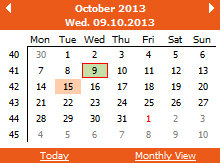
Click on the following links to change the small calendar's display:
- Today: Switches to the current date.
- Monthly View: Switches to the monthly view.
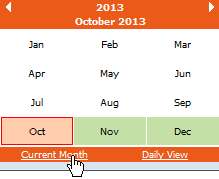
- Current Month: Switches to the current month (available in monthly view).
- Daily View: Returns to the daily view.
The following options are available when the popup calendar is open:
- Use the Esc key, the Return key or the Tab key to close the popup calendar.
- Use the arrow keys to select and display a date.
- Use the Home key to switch to the current date.
- Use F2 to switch between the small calendar's daily view and monthly view.
- If you use the popup calendar to select a day, the focus changes to that day and the popup calendar is closed immediately.