Defining Links
To define a link (e.g. from the activity mask in the calendar to the Marketing Activity level):
- Click on
 (New) under Defined Links.
The Link Definition window is displayed.
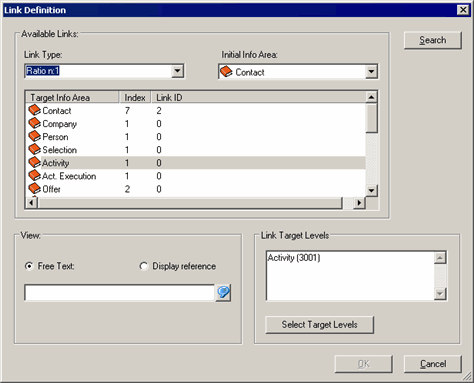
- Select the type of link in the Link type field (1:1, 1:n or n:1).
- Select one of the info areas in the source level under Source
info area (in this case, the Activity info area in
the Calendar level).
All info areas linked to the source info area in the data model using the selected link type are listed in the Target Info Area column. If the desired info area is not listed, you need to add a link to the data model, see Link in the CRM.core Administrator Guide.
The index is displayed in the Index column, see Index in the CRM.core Administrator Guide.
The ID of the corresponding link in the data model is displayed in the Link ID column, see Link IDs in the CRM.core Administrator Guide.
- Select the desired Target Info Area.
- Click on Search to define which field contents in the source
info area should be used as default search values when linking records, see Using Field Contents as Search Criteria.
These default values are transferred to the search mask when a user clicks on the
 (Search)
button.
(Search)
button. - Determine how the link should be displayed under View:
- Select Free Text to enter your own text for the link.
- Select Display Reference to display the target info area's reference, see Reference Tab.
- Click the Select Target Levels button under Target
Levels.
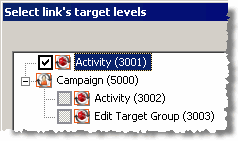
- Enable the check box next to the desired target level. If a user clicks on the link,
the linked record is opened in this level.Note: If no level exists for the selected target info area, you need to define a new level, see Defining New Levels.
- Click on OK.
The defined links are displayed under Defined Links and can be edited and deleted using the
 (Edit) and
  (Delete) buttons.
 - To add the links to the context menu, switch to the Context Menu tab and add the links to the context menu, see Adding Links to the Context Menu.